
MINECRAFT · JAVA 1.21.1
Read biomes and explore rare regions
A biome map helps you identify regions and compare their surroundings. Start with the color legend, then inspect the point and height that matter to your trip.
Read the biome, not just its color
A biome describes a region’s characteristics, including its environment and vegetation. Minecraft’s biome overview introduces the different environments. On this map, color is a visual key to calculated biome data; it is not a photograph of the ground.
Open the map legend and use the biome names to interpret colors. Click an empty map area to inspect a point. Do not guess that every green patch is the same forest or that every blue area gives an exact water depth. Terrain relief, estimated water and biome data answer different questions.
If you are choosing a base, inspect both the target biome and its neighbors. A scenic boundary may be more useful than the middle of a large region when you want access to different landscapes. See the base-planning guide for a comparison method.
Use the legend to check the visible area
- Open the seed map with a supported Java 1.21.1 seed.
- Choose an Overworld surface view and a center you can return to.
- Open Map legend, choose a biome and use Highlight to emphasize its sampled area.
- Inspect a point in the highlighted patch, then zoom closer if its boundary matters.
- Save the view or copy the link before continuing farther away.
A highlighted area is a useful lead. A blank view means the chosen biome was not highlighted in that view; it does not prove the biome is absent from the entire world. A distant or very small patch may need a different center or closer sampling.
Try an underground slice
Biomes can vary with height. Surface terrain is useful for an outdoor journey, while a horizontal biome slice helps inspect a chosen Y level. It still does not draw cave walls, passages, ore or structure interiors.
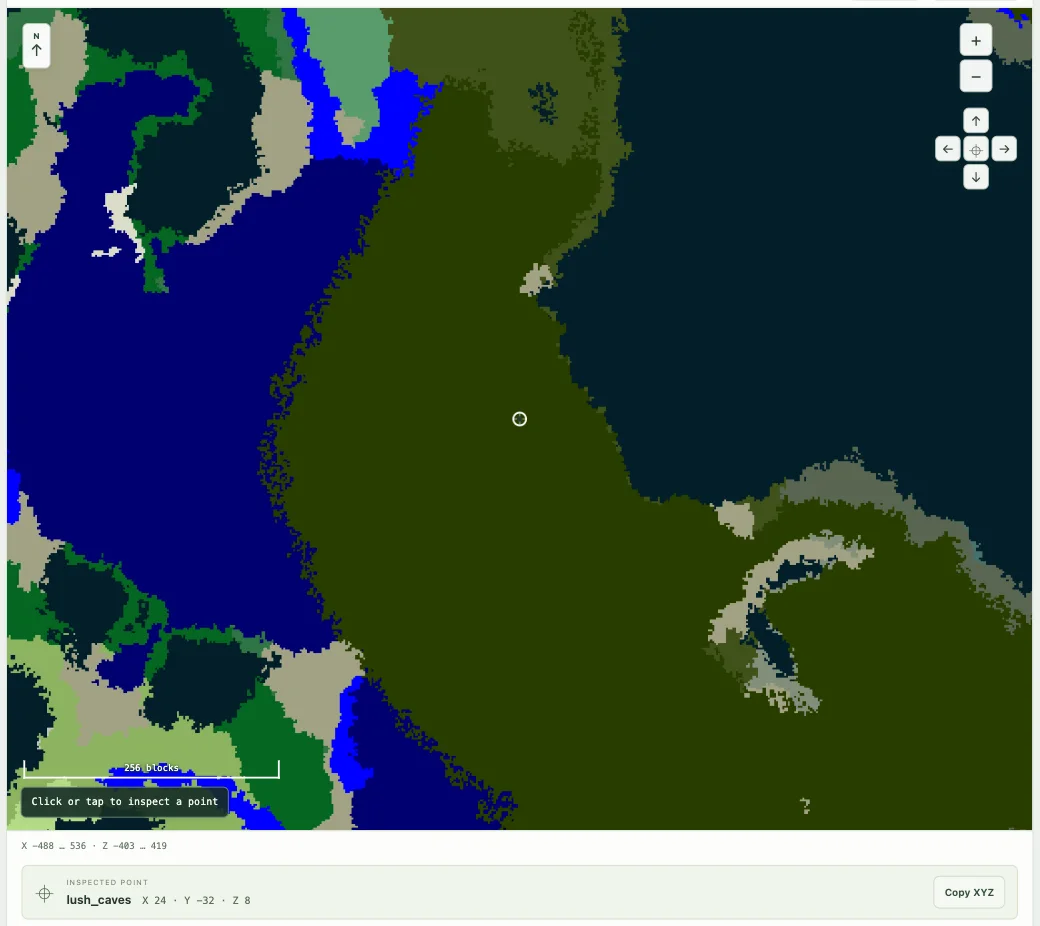
For a reproducible example, open seed 12345 at X 24, Z 8 with a map width of 1,024 and a slice at Y −32. Open that slice, inspect a point, and compare it with a surface view at the same X/Z. This demonstrates the controls; it is not a claim that the seed contains a particular rare destination.
An ancient city marker and a deep dark biome are not interchangeable. One is a predicted structure start; the other is a sampled biome. Use the ancient city finder when the structure is your actual objective.
Search beyond the visible map
The biome finder checks the selected biome around your current map center at one fixed Y height. Choose a radius of 512, 1,024, 2,048 or 4,096 blocks. A smaller radius is a useful first check near a base; expand it if you are prepared to travel farther.
The search samples positions on a 32-block grid and returns a nearby sampled match. It does not examine every block or guarantee the nearest biome boundary. Small patches between sample points can be missed. “No match” means no matching sample was found in that search, not that the biome is absent from the world.
Choose the Y level deliberately. For a surface-region trip, inspect a returned point against the surface view before treating it as a destination. For an underground biome, use a height relevant to that question and remember that a biome match is not a cave entrance. The search stays at its chosen Y; it does not follow the ground upward and downward.
For example, search a 1,024-block radius around your base, open a returned point and zoom in to inspect the area. Keep the original center in a saved view if you want to compare another destination. Cancel an unwanted search rather than waiting for a large radius you no longer need; Clear removes the search result. Legend highlighting remains a separate display feature for the area already on screen.
Search for a rare region methodically
“Rare” is not a probability score supplied by this tool. Pick the biome you need and move through neighboring map areas while keeping a note of the centers you checked. Small, overlapping steps are easier to track than repeatedly jumping to unrelated coordinates.
A broad view makes regional patterns easier to compare, but sampling can conceal small patches. Once you find a promising area, zoom in and inspect it. Keep coordinates for the approach as well as the destination if you will travel over water or difficult terrain.
Avoid promising yourself an exact tree or landmark from the decorative layer. Trees and block-style materials are illustrated; the calculated biome is the underlying information. A screenshot of pink trees is not evidence of every tree’s in-game position.
When the biome seems wrong
Check edition, generation version, dimension and Y height first. Then confirm the actual point you clicked rather than a nearby color. A wide sampled map can simplify a boundary, and a world created with custom generation or older chunks can differ from a fresh default Java 1.21.1 world.
Use coordinates and chunks to record the location precisely. If the same supported point still disagrees, prepare the seed, X/Y/Z, world settings and an in-game comparison in Help & troubleshooting.
Keep exploring
All Minecraft seed guides · Map controls with screenshots · Troubleshoot a mismatch