
MAP GUIDE
How to use the Minecraft seed map
Follow these steps to load your Java 1.21.1 seed, find a structure, read its coordinates and save the view. The screenshots show the controls you will use on this site.
1. Load your world
Open the seed map and paste the complete number into World seed. Keep the minus sign if there is one. This tool accepts numeric seeds; if you created a world using a word, use that world’s resulting numeric seed instead.
For a Java world where you have access, enter /seed in the game to read its seed. On a server, ask its owner if you cannot access that information. This map does not retrieve a seed from a world name or server address.
- Choose Overworld, Nether or The End.
- Enter your starting Center X and Center Z. Zero, zero is the world origin; it is not a calculated player spawn.
- Start with a Map width of 2,048 blocks and Detailed map detail. Choose a smaller width when you want to look more closely.
- Select Render map. Terrain appears first; structure icons follow.
A fresh visit opens in 2D with all supported structure layers selected. A saved or shared view may use different settings.
The examples here use seed 12345. The first screenshot centers on X 24, Z 8 at a width of 1,024 blocks. Open that example to follow along.
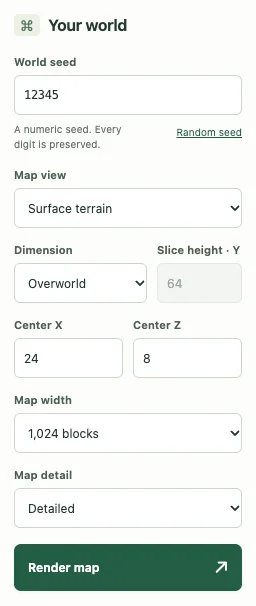
Choose the Java version that generated the area you are viewing. The map supports the versions listed in its selector. Bedrock, unlisted versions, custom generation and chunks created before an upgrade can differ even when the seed matches. The screenshots and worked examples below use Java 1.21.1.
2. Move around and zoom in
Drag the map to move across the world, or use the arrow buttons at its edge. In 2D, north is up: X increases to the right and Z increases downward. The center fields change as you move.
Use + and − to change the visible area. On a mouse, hold Ctrl while scrolling to zoom. The scale bar shows the current block distance. Expand map gives the map more screen space; Escape returns to the normal page when no menu or popup is open.
Loaded areas stay available while new edges are calculated. You can continue moving before every new tile has finished. If you want to stop an unfinished calculation, use Cancel; your entered settings are kept.
| Key | When the map has focus |
|---|---|
| Arrow keys | Move north, south, east or west |
| + or − | Zoom in or out |
| Enter | Inspect the center point |
| Tab | Move to the next control or structure marker |
To use map keyboard controls, click the map or Tab to it first. On a phone, drag to move and use the visible zoom and arrow buttons.
3. Choose which structures to show
Open Structures above the map. Uncheck types you do not need, or choose Hide all and then select one type. This is useful when icons overlap or you are looking for a particular destination. Select all restores every supported type in the current dimension.
The menu stays open while you change the checkboxes. When you are done, click or tap anywhere outside it. Escape also closes it and returns keyboard focus to the menu button.
Filtering changes the markers without recalculating the landscape. A type can be selected even when there are no predicted locations for it in the area on screen. Pan to a different area or use a nearby search to look farther.
The Overworld includes villages, desert pyramids, jungle temples, ocean monuments, shipwrecks, ruined portals, ancient cities, trial chambers and strongholds. The Nether includes fortresses, bastions and ruined portals. The End includes End cities.
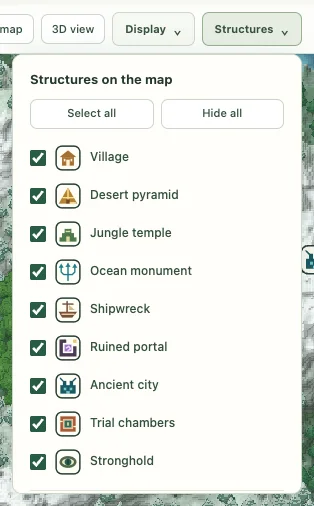
4. Click a marker and read its coordinates
Click or tap a structure icon to open its details. Keyboard users can Tab to an icon and press Enter. The popup shows the structure name, block X/Z, chunk X/Z and a distance. Select Copy X / Z to copy the two block coordinates.
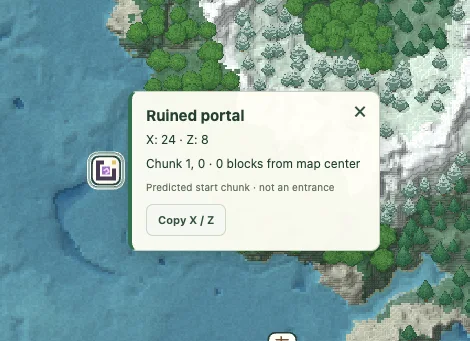
In the screenshot, the ruined portal marker is at X 24, Z 8 in chunk 1, 0. Its distance is zero because the map is centered on that marker. Moving the map changes the displayed distance, but the marker’s world coordinates stay the same.
A chunk covers 16 × 16 horizontal blocks. The marker is the center of a predicted starting chunk. It is not an entrance, a floor height or a complete building outline, and it can differ from the position shown by the game’s /locate command. The popup distance is a straight line from the map center, not from your player and not a walking route.
Keep coordinate signs when copying a result. For example, X −120 and X 120 are on opposite sides of the world origin. Close the popup with its × button or Escape before selecting another covered icon.
5. Inspect a biome or change the slice height
Click an empty area of the map to inspect a point. The readout gives a biome and X/Y/Z coordinates. In Surface terrain mode, Y is the calculated landscape height at that point. It is not the height of an underground structure.
To inspect a horizontal layer, choose Biome slice, enter Slice height · Y, then select Render map. Overworld slices allow Y −64 to 319; Nether and End slices allow Y 0 to 255. Nether and End use this view automatically.
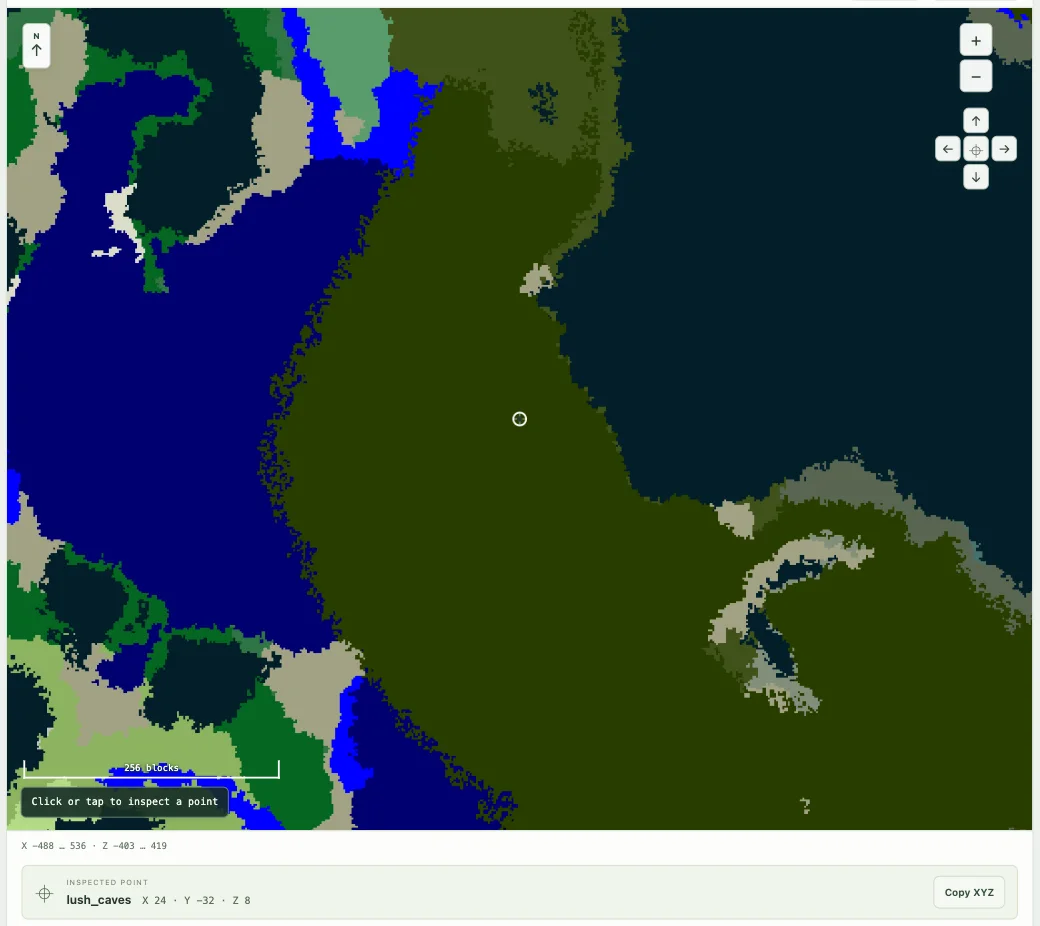
The screenshot uses Y −32 at X 24, Z 8 in seed 12345. Open this slice example to inspect the same area. A slice shows which biomes are sampled at that height. It does not reveal cave walls, tunnels, ore veins or safe passages. Biome data below ground can differ from the surface above it.
Open Map legend beneath the map to read its biome colors. Choose a biome and select Highlight to emphasize its sampled areas in the current view. Clear removes the highlight. This does not search the whole world for the nearest biome.
6. Switch to 3D or adjust the display
For Overworld surface terrain, select 3D view. Drag to move, hold Shift while dragging to rotate, or use the two rotation buttons. Move the Tilt slider to change the viewing angle. Reset angle restores the starting camera angle; 2D view returns to the overhead map.
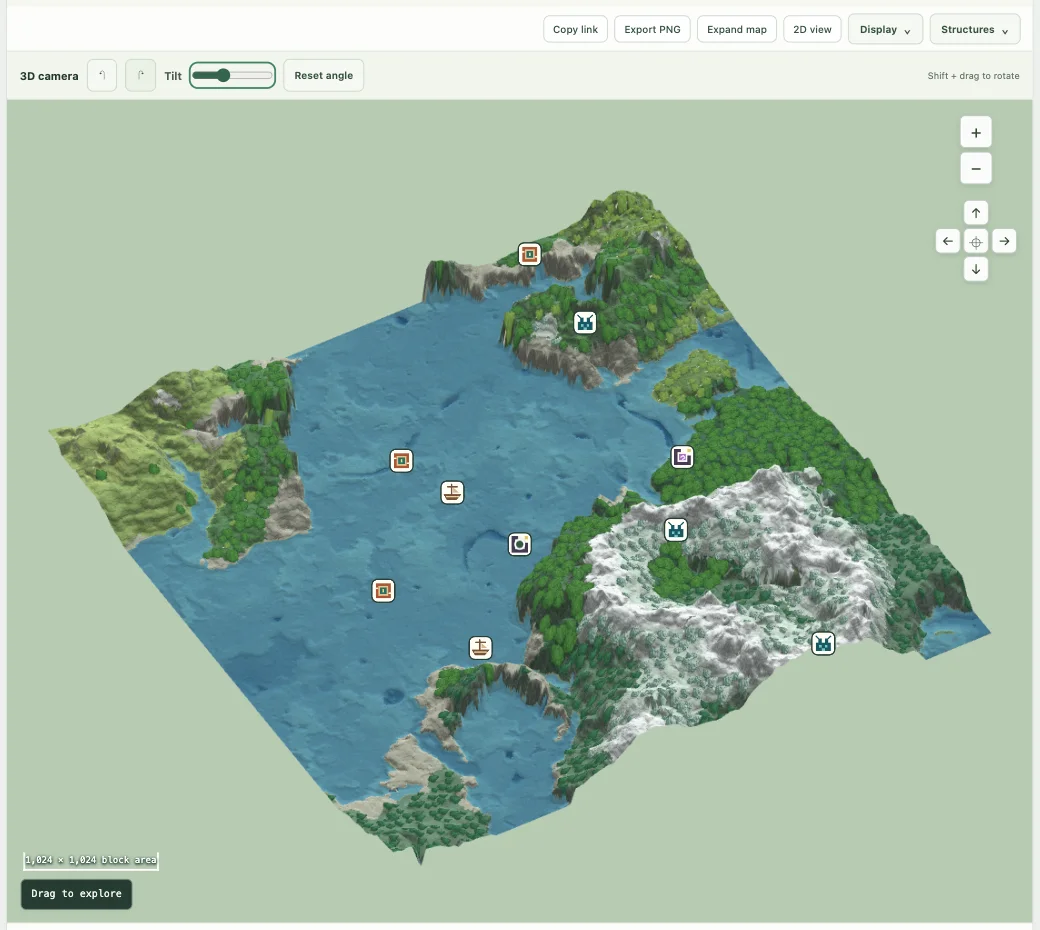
Structure icons remain clickable in 3D. On a phone, use the rotation buttons and Tilt slider rather than a keyboard gesture. If the browser cannot display 3D, the map remains usable in 2D. Nether and End stay as flat biome slices.
Open Display to toggle illustrated trees, block detail, the center marker or the 16 × 16 block chunk grid. Zoom closer if the grid is too dense to show clearly. These switches change the appearance without changing the calculated coordinates.
The terrain comes from base-height calculations. Trees and material textures are illustrations, and sea-level water is estimated. The 3D view does not reproduce every Minecraft block, tree, cave, fluid or structure interior.
7. Search for a structure near a chosen point
Use Nearby structures below the map when you want a distance-sorted list. Choose a type and select Find nearby. The search covers a radius of 2,048 blocks around the current center. The separate structure finder accepts the same seed, dimension and center before opening the map.
Choose View beside a result to center the map there, or Copy XZ to copy its position. If the list is empty, move the search center and try another area. An empty list does not mean that the whole world lacks that structure.
For underground destinations, read the ancient city guide. For a Nether search, use the bastion guide and enter Nether coordinates. This tool does not convert or link portals for you.
8. Save, share or download the view
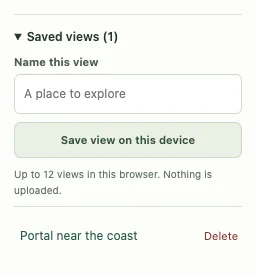
Open Saved views, enter a name you will recognize and select Save view on this device. Up to 12 views are stored in this browser. Each keeps the seed, center, map settings, selected structure layers and display choices. A saved 3D view also keeps its camera settings.
Use Copy link above the map to share a view or keep it elsewhere. The seed and settings are included after the # in the link, so copy the whole address. Anyone with that link can read the seed.
Export PNG downloads an image of the current map, including its visible structure markers. The image is useful for a note or discussion; it cannot be reopened as an interactive saved view.
Saved views are not an account backup. Clearing site data, switching browser profiles or ending some private sessions can remove them. Keep a copied link if you need the view on another device. The browser storage page explains how to clear saved entries.
If the map does not match your world
- Compare every seed digit, including the minus sign, and match the selected Java version to the game.
- Check the dimension and coordinate signs. Nether coordinates are not interchangeable with Overworld coordinates.
- Check whether you are looking at surface terrain or a biome slice at a chosen Y.
- Find out whether that part of the game world was generated in an older version or uses mods, datapacks or non-default generation.
- Compare the predicted start chunk rather than expecting an entrance directly beneath the icon.
If it still differs, use Help & troubleshooting to prepare the seed, location and world settings. The help form prepares a note on your device; it does not send a support request.
For game-version details, see the official Minecraft Java 1.21.1 release page. This guide describes this site’s controls, which can differ from other seed maps.